Tooling
Vite
Vite is the recommended build tool for new React projects. styled-components works with Vite out of the box, but adding a compiler plugin enables server-side rendering support, better debugging with component display names, and CSS minification.
With SWC (recommended)
The fastest setup uses the SWC-based React plugin with the styled-components SWC plugin:
npm install --save-dev @vitejs/plugin-react-swc @swc/plugin-styled-components
// vite.config.ts
import { defineConfig } from 'vite';
import react from '@vitejs/plugin-react-swc';


export default defineConfig({
  plugins: [
    react({
      plugins: [
        ['@swc/plugin-styled-components', {
          displayName: true,
          ssr: true,
        }],
      ],
    }),
  ],
});
The SWC plugin version must be compatible with the SWC core version bundled in @vitejs/plugin-react-swc. If you encounter Wasm errors, check the plugin's compatibility table.
With Babel
If your project already uses Babel plugins, you can use the Babel-based React plugin instead:
npm install --save-dev @vitejs/plugin-react babel-plugin-styled-components
// vite.config.ts
import { defineConfig } from 'vite';
import react from '@vitejs/plugin-react';


export default defineConfig({
  plugins: [
    react({
      babel: {
        plugins: [
          ['babel-plugin-styled-components', {
            displayName: true,
            ssr: true,
            pure: true,
          }],
        ],
      },
    }),
  ],
});
@vitejs/plugin-react v6+ (Vite 8) removed Babel as a built-in dependency. If you are on v6+, use the SWC approach above or add @rolldown/plugin-babel separately.
SSR with Vite
For server-side rendering with Vite (e.g., using Vike), use styled-components' ServerStyleSheet in your server entry:
// entry-server.tsx
import { renderToString } from 'react-dom/server';
import { ServerStyleSheet } from 'styled-components';
import App from './App';


export function render() {
  const sheet = new ServerStyleSheet();
  try {
    const html = renderToString(sheet.collectStyles(<App />));
    const styleTags = sheet.getStyleTags();
    return { html, styleTags };
  } finally {
    sheet.seal();
  }
}
If you use Vike (formerly vite-plugin-ssr), the vike-react-styled-components extension handles style collection automatically.
SWC Plugin
This plugin adds support for server-side rendering, minification of styles, and better debugging experience when using styled-components with the SWC compiler.
Usage
First, install the @swc/plugin-styled-components and @swc/core packages:
npm install --save-dev @swc/plugin-styled-components @swc/core
Then, add the plugin to your .swcrc configuration file:
{
  "jsc": {
    "experimental": {
      "plugins": [
        [
          "@swc/plugin-styled-components",
          {
            "displayName": true,
            "ssr": true
          }
        ]
      ]
    }
  }
}
Options
displayName:- Description: Enhances the attached CSS class name on each component with richer output to help identify your components in the DOM without React DevTools. It also allows you to see the component's
displayNamein React DevTools. - Type: Boolean
- Default:
true - Values:
trueorfalse
- Description: Enhances the attached CSS class name on each component with richer output to help identify your components in the DOM without React DevTools. It also allows you to see the component's
ssr:- Description: Adds a unique identifier to every styled component to avoid checksum mismatches due to different class generation on the client and on the server. Helps in server-side rendering (SSR).
- Type: Boolean
- Default:
true - Values:
trueorfalse
fileName:- Description: Controls whether the
displayNameof a component will be prefixed with the filename or solely the component name. - Type: Boolean
- Default:
true - Values:
trueorfalse
- Description: Controls whether the
meaninglessFileNames:- Description: Allows customizing the list of file names that are not relevant to the description of a styled component's functionality. Uses directory names instead.
- Type: Array of strings
- Default:
["index", "styles"] - Values: Any array of strings representing meaningless file names.
minify:- Description: Minifies your CSS by removing all whitespace and comments. Also transpiles tagged template literals to a smaller representation.
- Type: Boolean
- Default:
true - Values:
trueorfalse
transpileTemplateLiterals:- Description: Transpiles
styled-componentstagged template literals to a smaller representation. Helps reduce bundle size. - Type: Boolean
- Default:
true - Values:
trueorfalse
- Description: Transpiles
pure:- Description: Enables a feature called "pure annotation" to aid dead code elimination process on styled components.
- Type: Boolean
- Default:
false - Values:
trueorfalse
namespace:- Description: Ensures that your class names will be unique, useful when working with micro-frontends where class name collisions can occur.
- Type: String
- Default:
undefined - Values: Any string representing the desired namespace.
Server-side rendering
By adding a unique identifier to every styled component, this plugin avoids checksum mismatches due to different class generation on the client and on the server. If you don't use this plugin and try to server-side render styled components, React will complain with an HTML attribute mismatch warning during rehydration.
You can disable this feature by setting the ssr option to false:
{
  "jsc": {
    "experimental": {
      "plugins": [
        [
          "@swc/plugin-styled-components",
          {
            "ssr": false
          }
        ]
      ]
    }
  }
}
Better Debugging
This option enhances the attached CSS class name on each component with richer output to help identify your components in the DOM without React DevTools. It also allows you to see the component's displayName in React DevTools.
If you don't need this feature, you can disable it by setting the displayName option to false:
{
  "jsc": {
    "experimental": {
      "plugins": [
        [
          "@swc/plugin-styled-components",
          {
            "displayName": false
          }
        ]
      ]
    }
  }
}
Control the components displayName
By default, the displayName of a component will be prefixed with the filename in order to make the component name as unique as possible.
You can force the component displayName to be solely the component name by disabling the fileName option:
{
 "jsc": {
   "experimental": {
     "plugins": [
       [
         "@swc/plugin-styled-components",
         {
           "fileName": false
         }
       ]
     ]
   }
 }
}
Control which file names are meaningless
A common pattern is to put components in Button/index.jsx instead of Button.jsx. By default, if the fileName option is set to true, the plugin will generate the displayName using the directory name (<button class="Button-asdf123 asdf123" />) instead of the file name (<button class="index-asdf123 asdf123" />), because the former provides more information.
The meaninglessFileNames option allows you to customize the list of file names that are not relevant to the description of a styled component's functionality, and hence the directory name should be used instead:
{
 "jsc": {
   "experimental": {
     "plugins": [
       [
         "@swc/plugin-styled-components",
         {
           "meaninglessFileNames": ["index", "styles"]
         }
       ]
     ]
   }
 }
}
Minification
This plugin minifies your CSS by removing all whitespace and comments. It also transpiles tagged template literals to a smaller representation, keeping valuable bytes out of your bundles.
If desired, you can disable this behavior by setting the minify option to false:
{
 "jsc": {
   "experimental": {
     "plugins": [
       [
         "@swc/plugin-styled-components",
         {
           "minify": false,
           "transpileTemplateLiterals": false
         }
       ]
     ]
   }
 }
}
Dead Code Elimination
Due to how styled components are transpiled and constructed, by default, minifiers cannot properly perform dead code elimination on them because they are assumed to have side effects. However, there is a feature that can be enabled to aid this process called "pure annotation".
{
 "jsc": {
   "experimental": {
     "plugins": [
       [
         "@swc/plugin-styled-components",
         {
           "pure": true
         }
       ]
     ]
   }
 }
}
Template String Transpilation
Similar to the Babel plugin, this plugin transpiles styled-components tagged template literals to a smaller representation than what SWC normally creates. This helps reduce the bundle size.
You can disable this feature by setting the transpileTemplateLiterals option to false:
{
 "jsc": {
   "experimental": {
     "plugins": [
       [
         "@swc/plugin-styled-components",
         {
           "transpileTemplateLiterals": false
         }
       ]
     ]
   }
 }
}
Namespace
The namespace option ensures that your class names will be unique, which is handy when working with micro-frontends where class name collisions can occur.
To enable this behavior, set the namespace option in your configuration:
{
 "jsc": {
   "experimental": {
     "plugins": [
       [
         "@swc/plugin-styled-components",
         {
           "namespace": "my-app"
         }
       ]
     ]
   }
 }
}
Babel Plugin
This plugin adds support for server-side rendering, minification of styles, and a nicer debugging experience.
Usage
Install the babel-plugin first:
npm install --save-dev babel-plugin-styled-components
Then add it to your babel configuration like so:
⚠️ The plugin call order in your .babelrc file matters. If you're using the env property in your babel configuration, then putting this plugin into the plugins array won't suffice. Instead it needs to be put into each env's plugins array to maintain it being executed first. See this for more information.
{
  "plugins": ["babel-plugin-styled-components"]
}
Server-side rendering
By adding a unique identifier to every styled component, this plugin avoids checksum mismatches due to different class generation on the client and on the server. If you do not use this plugin and try to server-side render styled-components React will complain with an HTML attribute mismatch warning during rehydration.
You can disable it if necessary with the ssr option:
{
  "plugins": [
    [
      "babel-plugin-styled-components",
      {
        "ssr": false
      }
    ]
  ]
}
Better debugging
This option enhances the attached CSS class name on each component with richer output to help identify your components in the DOM without React DevTools. In your page source you'll see: <button class="Button-asdf123 asdf123" /> instead of just <button class="asdf123" />.
It also allows you to see the component's displayName in React DevTools. For example, consider writing a styled component that renders a button element, called MyButton. It will normally show up in DevTools as styled.button, but with the displayName option enabled, it has the name you gave it: MyButton.
This makes it easier to find your components and to figure out where they live in your app.
If you don't need this feature, you can disable it with the displayName option:
{
  "plugins": [
    [
      "babel-plugin-styled-components",
      {
        "displayName": false
      }
    ]
  ]
}
Control the components displayName
By default, the displayName of a component will be prefixed with the filename in order to make the component name as unique as possible.
You can force the component displayName to be solely the component name by disabling the fileName option:
{
  "plugins": [
    [
      "babel-plugin-styled-components",
      {
        "fileName": false
      }
    ]
  ]
}
One example where you might want to do this is testing components with React Testing Library. If you use snapshot tests or other tools that reference component display names, keeping them short can improve readability. If you do want this for testing only, make sure to add this only under your test environment.
Control which file names are meaningless
A common pattern is to put components in Button/index.jsx instead of Button.jsx. By default, if the fileName option is set to true, the plugin will generate the display name using the directory name (<button class="Button-asdf123 asdf123" />) instead of the file name (<button class="index-asdf123 asdf123" />), because the former provides more information.
The meaninglessFileNames option allows to customize the list of file names that are not relevant to the description of a styled component's functionality, and hence the directory name should be used instead:
{
  "plugins": [
    [
      "babel-plugin-styled-components",
      {
        "meaninglessFileNames": ["index", "styles"]
      }
    ]
  ]
}
For example, adding styles to the list would enable you to store your styled components in a Button/styles.js file.
This option defaults to ["index"].
If either fileName or displayName are set to false, this option has no effect.
Minification
Two types of minifications are performed by this plugin: one removes all whitespace & comments from your CSS and the other transpiles tagged template literals, keeping valuable bytes out of your bundles.
If desired, you can disable this behavior via babel configuration:
{
  "plugins": [
    ["babel-plugin-styled-components", {
      "minify": false,
      "transpileTemplateLiterals": false
    }]
  ]
}
Dead Code Elimination
Due to how styled components are transpiled and constructed, by default minifiers cannot properly perform dead code elimination on them because they are assumed to have side effects. However, there is a feature that can be enabled to aid this process called "pure annotation".
{
  "plugins": [
    ["babel-plugin-styled-components", {
      "pure": true
    }]
  ]
}
It utilizes a babel helper to tag each styled component and library helper with the #__PURE__ JS comment that some minifiers use to overcome the aforementioned issue.
Template String Transpilation
This plugin transpiles styled-components tagged template literals down to a smaller representation than what Babel normally creates.
Wait, transpiling tagged template literals? Doesn't Babel do this natively? 🤔
If you're using @babel/preset-env and targeting browsers that don't natively support tagged template literals, Babel's standard transform produces verbose output to meet specification requirements.
Here's an example of the standard Babel-transpiled output:
var _templateObject = _taggedTemplateLiteral(['width: 100%;'], ['width: 100%;'])
function _taggedTemplateLiteral(strings, raw) {
  return Object.freeze(Object.defineProperties(strings, { raw: { value: Object.freeze(raw) } }))
}
var Simple = _styledComponents2.default.div(_templateObject)
styled-components does not require full spec compatibility. Our Babel plugin will transpile template literals attached to styled components to a slightly different, smaller form which still works in older browsers but has a much smaller footprint.
Here's the same example with the styled-components Babel plugin and transpileTemplateLiterals: true:
var Simple = _styledComponents2.default.div(['width: 100%;'])
The plugin is also smart enough to not modify tagged template literals belonging to other libraries and use cases:
// Following will be converted:
styled.div``
keyframe``
css```some text` // But this will not be converted:


// Here the outer template literal will be converted
// because it's attached to the component factory,
// but the inner template literals will not be touched:
styled.div`
  color: ${light ? `white` : `black`};
`
You can disable this feature with the transpileTemplateLiterals option:
{
  "plugins": [
    [
      "babel-plugin-styled-components",
      {
        "transpileTemplateLiterals": false
      }
    ]
  ]
}
Read more about Tagged Template Literals in our dedicated section explaining them.
Namespace
The namespace will ensure that your class names will be unique; this setting is handy when you are working with micro frontends where class name collision can occur.
If desired, you can enable this behavior via babel configuration:
{
  "plugins": [
    ["babel-plugin-styled-components", {
      "namespace": "my-app"
    }]
  ]
}
Here's an example of the transpiled code processed with namespace enabled:
_styledComponents2.default.div.withConfig({
  displayName: 'code__before',
  componentId: 'my-app__sc-3rfj0a-1',
})(['color:blue;'])
Testing
jest-styled-components provides utilities for testing styled-components with Jest and Vitest. It offers meaningful snapshot output and the toHaveStyleRule matcher for asserting style rules.
Installation
npm install --save-dev jest-styled-components
Import it once in your test setup file to register the snapshot serializer and matchers globally:
// jest.config.js
module.exports = {
  setupFilesAfterEnv: ['jest-styled-components'],
};
Or for Vitest:
// vitest.config.ts
import { defineConfig } from 'vitest/config';


export default defineConfig({
  test: {
    setupFiles: ['jest-styled-components'],
    environment: 'jsdom',
  },
});
Testing with React Testing Library
React Testing Library is the recommended way to test styled-components. Query elements by role, text, or test ID, then assert styles with toHaveStyleRule.
Themed components
Create a custom render wrapper that includes your ThemeProvider:
// test-utils.tsx
import { render, RenderOptions } from '@testing-library/react';
import { ThemeProvider } from 'styled-components';
import { theme } from './theme';


function Providers({ children }: { children: React.ReactNode }) {
  return <ThemeProvider theme={theme}>{children}</ThemeProvider>;
}


const customRender = (
  ui: React.ReactElement,
  options?: Omit<RenderOptions, 'wrapper'>
) => render(ui, { wrapper: Providers, ...options });


export * from '@testing-library/react';
export { customRender as render };
Then use it in your tests:
import { render, screen } from './test-utils';
import 'jest-styled-components';


const Button = styled.button<{ $primary?: boolean }>`
  background: ${props => props.$primary ? '#BF4F74' : '#ccc'};
`;


test('renders primary styles', () => {
  render(<Button $primary>Click</Button>);
  expect(screen.getByText('Click')).toHaveStyleRule('background', '#BF4F74');
});
toHaveStyleRule
The toHaveStyleRule matcher checks CSS rules injected by styled-components into the stylesheet. It accepts a property name, expected value (string or RegExp), and an optional options object for media queries and pseudo-classes:
import { render, screen } from '@testing-library/react';
import 'jest-styled-components';


const Button = styled.button`
  color: red;
  @media (max-width: 640px) {
    &:hover {
      color: green;
    }
  }
`;


test('applies styles and media queries', () => {
  render(<Button>Click</Button>);
  const button = screen.getByText('Click');


  expect(button).toHaveStyleRule('color', 'red');
  expect(button).toHaveStyleRule('color', 'green', {
    media: '(max-width: 640px)',
    modifier: ':hover',
  });
});
Use toHaveStyleRule (from jest-styled-components) rather than toHaveStyle (from @testing-library/jest-dom) for styled-components. In jsdom, getComputedStyle does not resolve styles from <style> tags, so toHaveStyle will not see styled-components CSS.
Snapshot testing
jest-styled-components replaces opaque hashed class names with stable placeholders and includes actual CSS rules in snapshot output:
import { render } from '@testing-library/react';
import 'jest-styled-components';


const Button = styled.button`color: red;`;


test('matches snapshot', () => {
  const { container } = render(<Button />);
  expect(container.firstChild).toMatchSnapshot();
});


// Snapshot output:
// .c0 { color: red; }
// <button class="c0" />
Without the plugin, snapshots would show only class="sc-bdVTJa eFzKmA" — unstable hashes that change on unrelated modifications.
Stylelint
Lint your styled components with stylelint!
Installation
For stylelint v15+ (recommended)
Configuring stylelint (v15+) for the first time? Follow these steps:
You need:
stylelint- The stylelint-config-standard, to extend the standard stylelint config
- The postcss-styled-syntax, to parse your styled components and extract the CSS from them
npm install --save-dev \
  stylelint \
  stylelint-config-standard \
  postcss-styled-syntax
Add a .stylelintrc file to the root of your project:
{
  "extends": [
    "stylelint-config-standard"
  ],
  "customSyntax": "postcss-styled-syntax"
}
For stylelint v14 and below
Deprecated: stylelint-processor-styled-components is archived and no longer maintained. Upgrade to stylelint v15+ with postcss-styled-syntax if possible.
You need:
stylelint- The stylelint-processor-styled-components, to extract styles from
styled-components - The
stylelint-config-styled-componentsto disable stylelint rules that clash withstyled-components - Your favorite
stylelintconfig! (for examplestylelint-config-recommended)
We recommend using Stylelint v9+ as this has added features that allow us to report correct line numbers on CSS syntax errors
npm install --save-dev \
  stylelint \
  stylelint-processor-styled-components \
  stylelint-config-styled-components \
  stylelint-config-recommended
Add a .stylelintrc file to the root of your project:
{
  "processors": [
    "stylelint-processor-styled-components"
  ],
  "extends": [
    "stylelint-config-recommended",
    "stylelint-config-styled-components"
  ]
}
Setup
You need to run stylelint. Add a lint:css script to your package.json which runs stylelint with a glob to all of your styled components:
{
  "scripts": {
    "lint:css":"stylelint './src/**/*.js'"
  }
}
The processor ignores javascript files that don't contain any styled-components, so don't worry about being too broad as long as you restrict it to javascript (or TypeScript).
Now you can lint your CSS by running the script:
npm run lint:css
Stylelint --fix option works with same rules on version 15+.
Webpack
If you want to lint on build, rather than as a separate command, you can use the stylelint-custom-processor-loader for webpack.
Legacy: stylelint-processor-styled-components specific sections
The following sections (stylelint-config-styled-components, Usage with other libraries, and Interpolation tagging) apply only to the deprecated stylelint-processor-styled-components (stylelint v14 and below). If you are using the recommended postcss-styled-syntax setup with stylelint v15+, you can skip these sections.
stylelint-config-styled-components
When using this processor a couple of stylelint rules throw errors that cannot be prevented, like no-empty-source or no-missing-end-of-source-newline. There's also a couple rules which we need to enforce, like no-vendor-prefix rules. (In v6+, vendor prefixing is disabled by default; if you enable it via StyleSheetManager, you don't need to add prefixes manually.)
The stylelint-config-styled-components will automatically disable rules that cause conflicts.
You can override rules defined in shared configs in your custom .stylelintrc.
Usage with other libraries
Some other libraries also implement the styled.x pattern with tagged template literals. This processor will lint the CSS in those tagged template literals too, as long as they use the styled keyword.
If you want to use the processor with another library but you also want to change the keyword (e.g. to write cool.div instead of styled.div) use the moduleName option:
import cool from 'other-library';


const Button = cool.button`
  color: blue;
`;
{
  "processors": [
    [
      "stylelint-processor-styled-components",
      {
        "moduleName": "other-library"
      }
    ]
  ]
}
That double array is on purpose but only necessary if you set options, see the processors configuration docs.
We only officially support styled-components, but the hope is that other libraries can also benefit from the processor.
Interpolation tagging (with stylelint-processor-styled-components)
Sometimes stylelint can throw an error (e.g. CssSyntaxError) even though nothing is wrong with your CSS. This is often due to an interpolation, more specifically the fact that the processor doesn't know what you're interpolating.
A simplified example:
const something = 'background';


const Button = styled.div`
  ${something}: papayawhip;
`;
When you have interpolations in your styles the processor can't know what they are, so it makes a good guess and replaces them with a syntactically equivalent placeholder value. Since stylelint is not a code flow analysis tool this doesn't cover all edge cases and the processor will get it wrong every now and then.
Interpolation tagging allows you to tell the processor what an interpolation is in case it guesses wrong; it can then replace the interpolation with a syntactically correct value based on your tag.
For example:
const something = 'background';


const Button = styled.div`
  // Tell the processor that "something" is a property
  ${/* sc-prop */ something}: papayawhip;
`;
Now the processor knows that the something interpolation is a property, and it can replace the interpolation with a property for linting.
To tag an interpolation add a comment at either the start or the end of the interpolation. (${/* sc-tag */ foo} or ${bar /* sc-tag */}) Tags start with sc- and, if specified, a tag overrides the processors guess about what the interpolation is.
Tags
The full list of supported tags:
sc-blocksc-selectorsc-declarationsc-propertysc-value
If you are in doubt of the vocabulary you can refer to this CSS vocabulary list with examples.
For example, when you interpolate another styled component, what you really interpolate is its unique selector. Since the processor doesn't know that, you can tell it to replace it with a selector when linting:
const Wrapper = styled.div`
  ${/* sc-selector */ Button} {
    color: red;
  }
`;
You can also use shorthand tags to avoid cluttering the code. For example:
const Wrapper = styled.div`
  ${/* sc-sel */ Button} {
    color: red;
  }
`;
sc-custom
sc-custom is meant to be used as a last resort escape hatch. Prefer the standard tags if possible.
On top of the above standard tags the processor also has the sc-custom tag to allow you to cover more unique and uncommon edge cases. With the sc-custom tag you can decide yourself what the placeholder value will be.
For example:
// Switch between left and right based on language settings passed through via the theme
const rtlSwitch = (props) => (props.theme.dir === 'rtl' ? 'left' : 'right');


const Button = styled.button`
  background: green;
  // Tell the processor to replace the interpolation with "left"
  // when linting
  margin-${/* sc-custom "left" */ rtlSwitch}: 12.5px;
`;
Syntax notes
Turning rules off from within your JS/CSS
Turn off rules with stylelint-disable comments (see the stylelint documentation for all allowed syntax) both inside and outside of the tagged template literals.
import React from 'react';
import styled from 'styled-components';


// Disable stylelint from within the tagged template literal
const Wrapper = styled.div`
  /* stylelint-disable */
  background-color: 123;
`;


// Or from the JavaScript around the tagged template literal
/* stylelint-disable */
const Wrapper = styled.div`
  background-color: 123;
`;
Template literal style and indentation
In order to have stylelint correctly apply indentation rules the processor needs to do a bit of opinionated preprocessing on the styles, which results in us only officially supporting one indentation style. (the supported style is the "default" one as shown in all the documentation)
The important thing is that you put the closing backtick on the base level of indentation as follows:
Right:
if (condition) {
  const Button = styled.button`
    color: red;
  `;
}
Wrong:
if (condition) {
  const Button = styled.button`
    color: red;
`
}
if (condition) {
  const Button = styled.button`
    color: red;`
}
It may be that other tagged template literal styles are coincidentally supported, but no issues will be handled regarding indentation unless the above style was used.
TypeScript Plugin
typescript-plugin-styled-components is a plugin for TypeScript that gives you a nicer debugging experience.
⚠️ TypeScript does not allow to use any plugin or transformer directly from the command line compiler tsc. So the plugin only works with build toolchains such as webpack with one of TypeScript loaders. There's an open issue to bring plugins to tsc though if you want to upvote it!
Please refer to the project's GitHub repo for documentation.
Syntax Highlighting
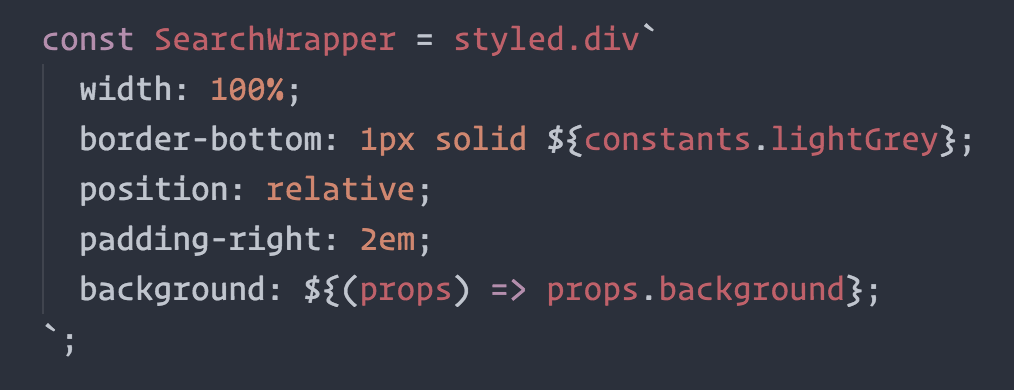
Writing CSS in template literals requires editor support for syntax highlighting. Plugins are available for Visual Studio Code, Sublime Text, NeoVim, WebStorm, and more.
This is what it looks like when properly highlighted:
Sublime Text
A PR by @garetmckinley has been merged into babel-sublime but has not been released to Package Control. It is, however, available to install directly from GitHub as described in this issue.
Another option is Naomi by Alexandre Borela, a collection of syntax highlighting definitions for Sublime Text 3 which supports styled-components out-of-the-box.
Visual Studio Code
@gandm's language-babel has been ported to VSCode under the name Babel JavaScript by Michael McDermott. It provides the same all-in-one solution for Babel syntax highlighting with styled-components included.
If you would like to keep your current JavaScript syntax highlighting, you can use the vscode-styled-components extension to provide styled-components syntax highlighting inside your Javascript files. You can install it as usual from the Marketplace.
NeoVim
If you're using NeoVim with TreeSitter, you can add styled into your config's ensure_installed table:
require'nvim-treesitter.configs'.setup {
  ensure_installed = { ..., "styled" },
  highlight = {
    enable = true,
  },
}
WebStorm, IntelliJ IDEA, PhpStorm, PyCharm, and RubyMine
The webstorm-styled-components plugin adds code completion and highlighting for CSS properties and values in the template strings. And it also provides code completion and navigation for JavaScript symbols in the interpolations. You can install it from the IDE: go to Preferences | Plugins and search for Styled Components.
Other Editors
We could use your help to get syntax highlighting support to other editors! All these syntax highlighting were built by the Styled Components community so if you want to start working on syntax highlighting for your editor, we would love to see it.
Styled Theming
The styled-theming package is no longer actively maintained. It may still work with current versions of styled-components, but consider using the built-in theming API directly for new projects.
Create themes for your styled components using styled-theming
Read more on the npm page
Install
Install the package:
npm install --save styled-theming
Example
import React from 'react'
import styled, { ThemeProvider } from 'styled-components'
import theme from 'styled-theming'


const boxBackgroundColor = theme('mode', {
  light: '#fff',
  dark: '#000',
})


const Box = styled.div`
  background-color: ${boxBackgroundColor};
`


export default function App() {
  return (
    <ThemeProvider theme={{ mode: 'light' }}>
      <Box>Hello World</Box>
    </ThemeProvider>
  )
}
API
<ThemeProvider>
<ThemeProvider> is part of styled-components, but is required for
styled-theming.
import { ThemeProvider } from 'styled-components'
<ThemeProvider> accepts a single prop theme which you should pass an
object with either strings or getter functions. For example:
<ThemeProvider theme={{ mode: "dark", size: "large" }}>
<ThemeProvider theme={{ mode: modes => modes.dark, size: sizes => sizes.large }}>
You should generally set up a <ThemeProvider> at the root of your app:
function App() {
  return (
    <ThemeProvider theme={...}>
      {/* rest of your app */}
    </ThemeProvider>
  );
}
theme(name, values)
Most of your theming will be done with this function.
name should match one of the keys in your <ThemeProvider> theme.
;<ThemeProvider theme={{ whatever: '...' }} />
theme("whatever", {...});
values should be an object where one of the keys will be selected by the
value provided to <ThemeProvider> theme.
<ThemeProvider theme={{ mode: "light" }} />
<ThemeProvider theme={{ mode: "dark" }} />


theme("mode", {
  light: "...",
  dark: "...",
});
The values of this object can be any CSS value.
theme("mode", {
  light: "#fff",
  dark: "#000",
});


theme("font", {
  sansSerif: '"Helvetica Neue", Helvetica, Arial, sans-serif',
  serif: 'Georgia, Times, "Times New Roman", serif',
  monoSpaced: "Consolas, monaco, monospace",
});
These values can also be functions that return CSS values.
theme('mode', {
  light: props => props.theme.userProfileAccentColor.light,
  dark: props => props.theme.userProfileAccentColor.dark,
})
theme will create a function that you can use as a value in
styled-component's styled function.
import styled from 'styled-components'
import theme from 'styled-theming'


const backgroundColor = theme('mode', {
  light: '#fff',
  dark: '#000',
})


const Box = styled.div`
  background-color: ${backgroundColor};
`
theme.variants(name, prop, themes)
It's often useful to create variants of the same component that are selected via an additional prop.
To make this easier with theming, styled-theming provides a
theme.variants function.
import styled from "styled-components";
import theme from "styled-theming";


const backgroundColor = theme.variants("mode", "variant", {
  default: { light: "gray", dark: "darkgray" },
  primary: { light: "blue", dark: "darkblue" },
  success: { light: "green", dark: "darkgreen" },
  warning: { light: "orange", dark: "darkorange" },
});


const Button = styled.button`
  background-color: ${backgroundColor};
`;


<Button />
<Button variant="primary" />
<Button variant="success" />
<Button variant="warning" />